Showing posts with label windows. Show all posts

Tuesday, September 11, 2012

Fix for Chrome bookmark bar not showing

0 comments
If Chrome only shows the bookmark bar on the "New tab" page, then you can fix it by right clicking on the bookmark bar when opening new tab, and clicking "Show bookmarks bar".

Detached bookmark bar.

Attached bookmark bar.

*Note: The images were edited because of private information.

Sunday, September 9, 2012

Subtitle plugin for VLC - VLSub

4 comments
VLC (VideoLAN) has a lot of customization features, it's free, supports huge variety of media formats, and so on, which makes it my most favorite video player.
Yesterday I noticed that BS Player offers automatic subtitle search when you play a file, so I searched the same for VLC, and I found a very good subtitle plugin.

It's called VLSub, and you may download it from: http://totallynoob.com/vlsubfile.php

Edited and fixed version by me: http://bit.ly/VLSub_Fixed

How to install: 
Type "%appdata%" in Windows Explorer (without quotes), and go to "vlc", then proceed to "lua" and finally "extensions".


If any of the folders doesn't exist, create the missing folder.
Paste the "vlcsub.lua" file in the "extensions" folder.


Now, open some file with VLC, and go to "View -> VLSub".


 It will open a dialog where you choose your language. Select your language, and press OK. It will start searching for subtitles from "www.opensubtitles.org". Choose the one which you find most suitable, and press OK. The subtitle will be downloaded, extracted, and loaded in VLC.


I successfully edited the script, and now it's working flawlessly.


Monday, August 20, 2012

Small Windows clock trick

0 comments
This is a small trick which changes the AM/PM text with whatever you want. You can use it to impress your friends, or confuse them.

First, click on the clock in the traybar. It will pop up a calendar and analog clock. Click on the "Change date and time settings..." link.


 Now, in the next dialog click "Change date and time..."

 Click "Change calendar time" in this dialog.

And finally, in the next dialog you can change the AM/PM text.


How does it look like? Here is an example:


Monday, August 13, 2012

Change Windows 7 start button

0 comments
If you are bored of the old Windows 7 start button, you can try this freeware application which changes the start button with one click.
Image courtesy of www.thewindowsclub.com


It includes 10 new button looks, but you can make your own too. 
This is a start orb I created, that fits the
default mouse-over, and mouse-click taskbar icons.


How to make custom icon:
  • The icon is formed from three 54x54 images merged together in vertical line. 
  • The first image is the default, the second is mouse-over, and the third is mouse-click.

Create three icons, merge them in your favorite image editing software, save as .bmp, and you may use it in the W7SBC.

Monday, August 6, 2012

How to block IP from accessing your PC

0 comments
Today, there are many malicious programs which infect your PC, and then allow the attacker to see private and important data from your computer. The best way to protect from the attacks is by using an anti-virus program.
But, sometimes even the antivirus makes mistakes. For example, Avast (which is my personal worst AV, although it's free) didn't pick up a direct connection from USA botnet to my friends PC, which was installed from a Google Chrome extension.
How did I stop that connection? Here are the steps:

  1. Start "Command Prompt" (Win+R -> type "cmd" without the quotes)

  2. Type "netstat -a" (without the quotes)
    • If you like the IPs exported to a file, type "netstat -a -> file.txt". A "file.txt" file will be created in the directory you are in.

  3. If you notice some suspicious IPs there, you can Google them, and if they lead to nowhere, or they lead to some site that you do not recognize, it's best to add them to the "hosts" file (next step).
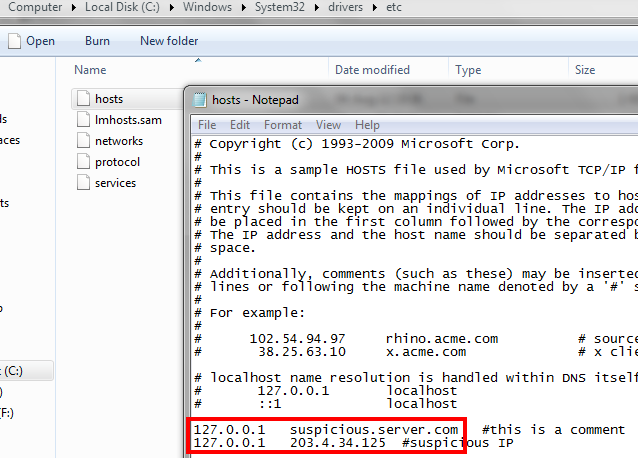
  4. Open Windows Explorer, and go to "C:\Windows\System32\drivers\etc\". You will find a "hosts" file without any extension.
  5. Double-click the file, and open it with Notepad.
  6. Below the lines which have "#" add "127.0.0.1" followed by space, and then the IP you want to block. 
  7. Save the file, restart the PC, and all the IPs(and addresses) you added will be blocked next time your PC starts.
Good luck!


WindowsBro | Windows tips, fixes, help.. Copyright 2008 All Rights Reserved Revolution Two Church theme by Brian Gardner Converted into Blogger Template by Bloganol dot com